
.png&w=256&q=75&dpl=dpl_Dgp7hvxu4FSeyoii85vf3en4Borc)
Postbeam + Slack
Every time someone on your team publishes a LinkedIn post, Postbeam pings the Slack channel you choose - with a direct link - so the whole team can jump in, like, and comment while the post is hot.
Part of the Employee Advocacy add-on · Works with public & private channels
.png&w=96&q=75&dpl=dpl_Dgp7hvxu4FSeyoii85vf3en4Borc)
PostbeamApp12:30 PM
🚀 Emil just published a new LinkedIn post! Check it out and show some love:
https://www.linkedin.com/feed/update/urn:li:share:7470180425655816192
A post nobody sees is a post that never happened
Teams that engage with each other's posts reach dramatically more people. The hard part is knowing when to engage - that's what this integration solves.
Win the first hour
LinkedIn's algorithm decides a post's reach early. When your team likes and comments right away, the post gets shown to far more people.
One channel, whole team
Every post lands in the Slack channel where your team already works. Nobody has to scroll LinkedIn hoping to catch it.
No awkward nudges
Stop DM-ing “can you like my post?” The bot announces every post automatically, so engaging becomes a habit, not a favor.
How it works in Slack
Set it up once - then every post becomes a team moment.
Your whole team is notified to engage
The moment a monitored account publishes, Postbeam posts to your channel with a direct link to the post. One click and your team is liking and commenting - no searching, no missed posts.
Posts published through Postbeam notify instantly. Posts published directly on LinkedIn are picked up on scheduled checks during the day.

Add any account to notify when they post
Monitor your founders, execs, sellers, or the company page. Each account gets its own automation, so teams managing multiple LinkedIn profiles can route every voice to the right place.
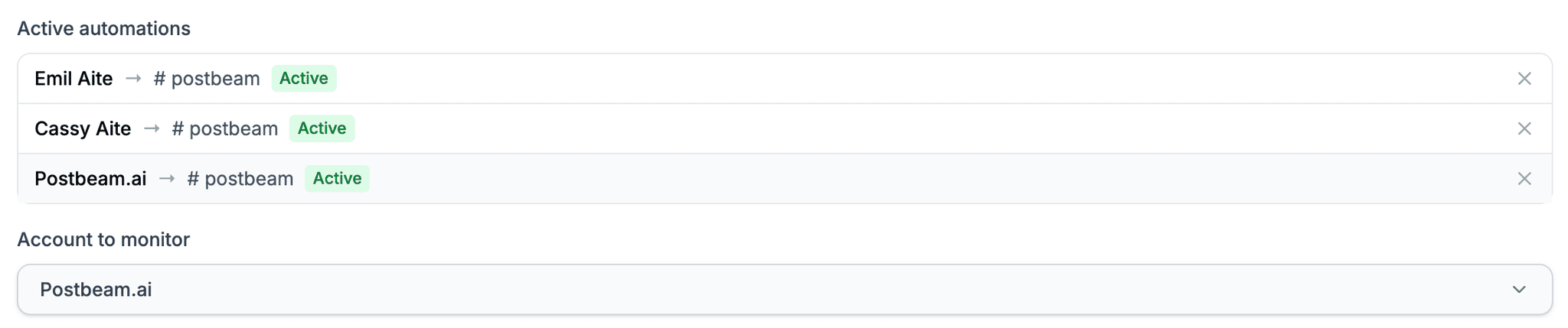
Customize your message and channel
Pick any public or private channel, then make the notification sound like your team. Smart variables fill in the author, the post link, and the publish time automatically.
{author_name}{post_url}{timestamp}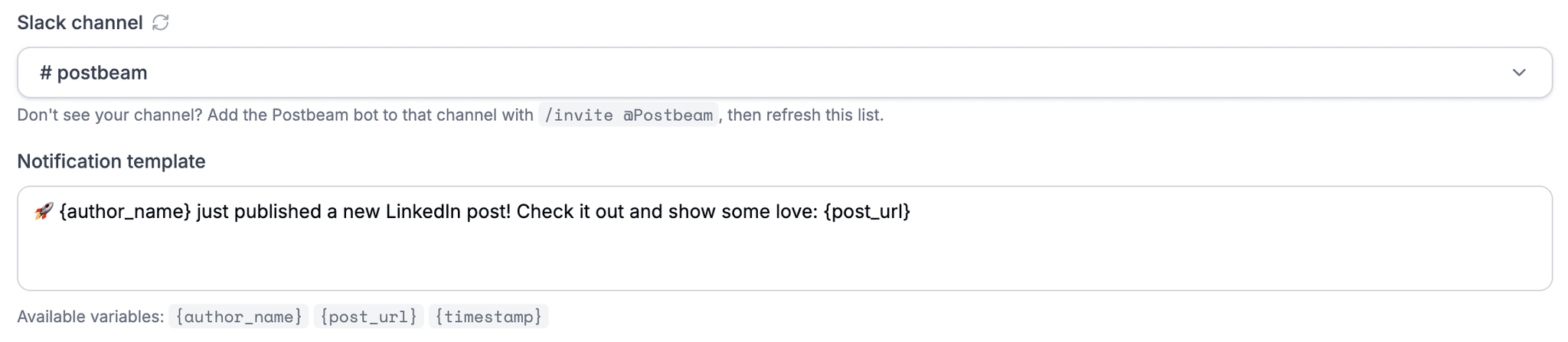
Everything the Postbeam Slack app can do
- Connect your Slack workspace to your Postbeam company account
- Choose which LinkedIn accounts to monitor - teammates or your company page
- Choose which Slack channel receives notifications, public or private
- Get a Slack message the moment a monitored account publishes a post
- Customize the notification template with {author_name}, {post_url}, and {timestamp}
- Instant notifications for posts published through Postbeam
- Posts published directly on LinkedIn are picked up on scheduled checks
- Run a separate automation per account, each with its own channel
Set it up in about 3 minutes
Connect once, then add an automation per LinkedIn account.
- 1
In Postbeam, go to Settings → Integrations
Or head straight to app.postbeam.ai/integration/slack. New to Postbeam? Start with a free 7-day trial. - 2
Click Connect Slack and approve the installation
Slack shows you exactly what Postbeam can access before you approve - see the permissions below. - 3
Invite the bot to your channel:
/invite @PostbeamRun this in the Slack channel that should receive notifications. This is what lets the bot post there - and it's how private channels show up in the list. - 4
Back in Postbeam, refresh the Slack channel list
- 5
Select the LinkedIn account to monitor
Any connected teammate or your company page. - 6
Select the Slack channel
- 7
Customize the message template if you like, then save
Use{author_name},{post_url}and{timestamp}to shape the notification. Repeat for each account you want to monitor.
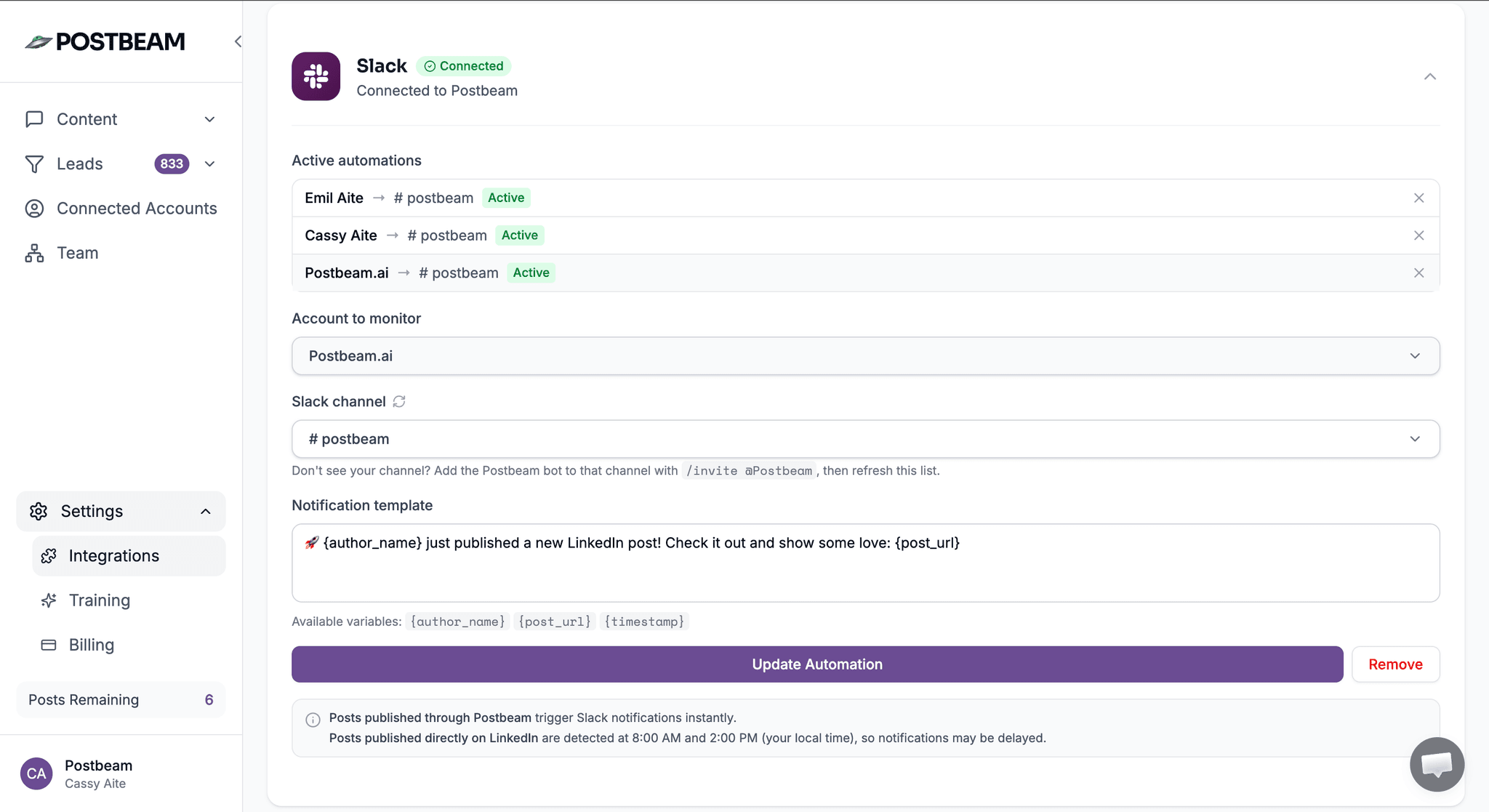
Notification timing: posts published through Postbeam trigger Slack notifications instantly. Posts published directly on LinkedIn are detected at 8:00 AM and 2:00 PM (your local time), so those notifications may be delayed.
Only the permissions it needs
Postbeam requests three Slack scopes - enough to post notifications where you ask it to, and nothing more. It never reads your message history or files.
chat:writeSend messages
Lets Postbeam post notifications into the channels you select - and nowhere else.
channels:readList public channels
Lets you pick a public channel from a dropdown instead of typing IDs.
groups:readList invited private channels
Shows private channels the bot has been invited to, so you can pick those too.
Read our privacy policy for how we handle data, or email team@postbeam.ai with any questions - we reply within 2 business days.
Frequently asked questions
How much does the Slack integration cost?
Slack notifications are part of the Employee Advocacy add-on: $349/month flat per company, up to 100 employees, on top of any Postbeam plan. The add-on also unlocks the company leaderboard, with CRM integration and attribution tracking coming soon.
Does it work with private channels?
Yes. Invite the bot to the private channel with /invite @Postbeam, then refresh the channel list in Postbeam. It works with both public and private channels.
When are notifications sent?
Posts published through Postbeam trigger a Slack notification instantly. Posts published directly on LinkedIn are detected during scheduled checks at 8:00 AM and 2:00 PM (your local time), so those notifications may be delayed.
Can I customize the notification message?
Yes. Edit the notification template and use the {author_name}, {post_url}, and {timestamp} variables to shape the message your team sees.
Can we monitor more than one LinkedIn account?
Yes. Create one automation per account - founders, execs, sellers, or your company page - each with its own Slack channel and template.
Which Slack permissions does Postbeam request?
Three scopes, following the principle of least privilege: chat:write to post notifications into the channels you select, channels:read to list public channels, and groups:read to list private channels the bot has been invited to. Postbeam does not read your message history or files.
How many Slack workspaces can I connect?
One Slack workspace per Postbeam company account.
How do I uninstall or turn it off?
Remove individual automations or disconnect Slack entirely from Settings → Integrations in Postbeam at any time.
How do I get support?
Email team@postbeam.ai - we respond within 2 business days. No extra accounts or logins needed.
Keep exploring
ChatGPT integration
Draft, schedule, and analyze LinkedIn posts from ChatGPT.
Claude integration
Connect Claude to Postbeam with MCP and run LinkedIn from chat.
Employee advocacy
Turn your whole team into a LinkedIn distribution engine.
Pricing
Simple plans, plus the Employee Advocacy add-on that includes Slack notifications.
Get your whole team behind every post
Connect Slack in about 3 minutes and never let a LinkedIn post go unseen by your team again.