
.png&w=256&q=75&dpl=dpl_Dgp7hvxu4FSeyoii85vf3en4Borc)
Postbeam + Claude
Postbeam is officially in the Claude connector directory. Add it in one click, then generate and edit your LinkedIn posts with AI straight from your chat - drafts in your voice, scheduling, and analytics included.
One-click install from the connector directory · No code · Included with every Postbeam plan
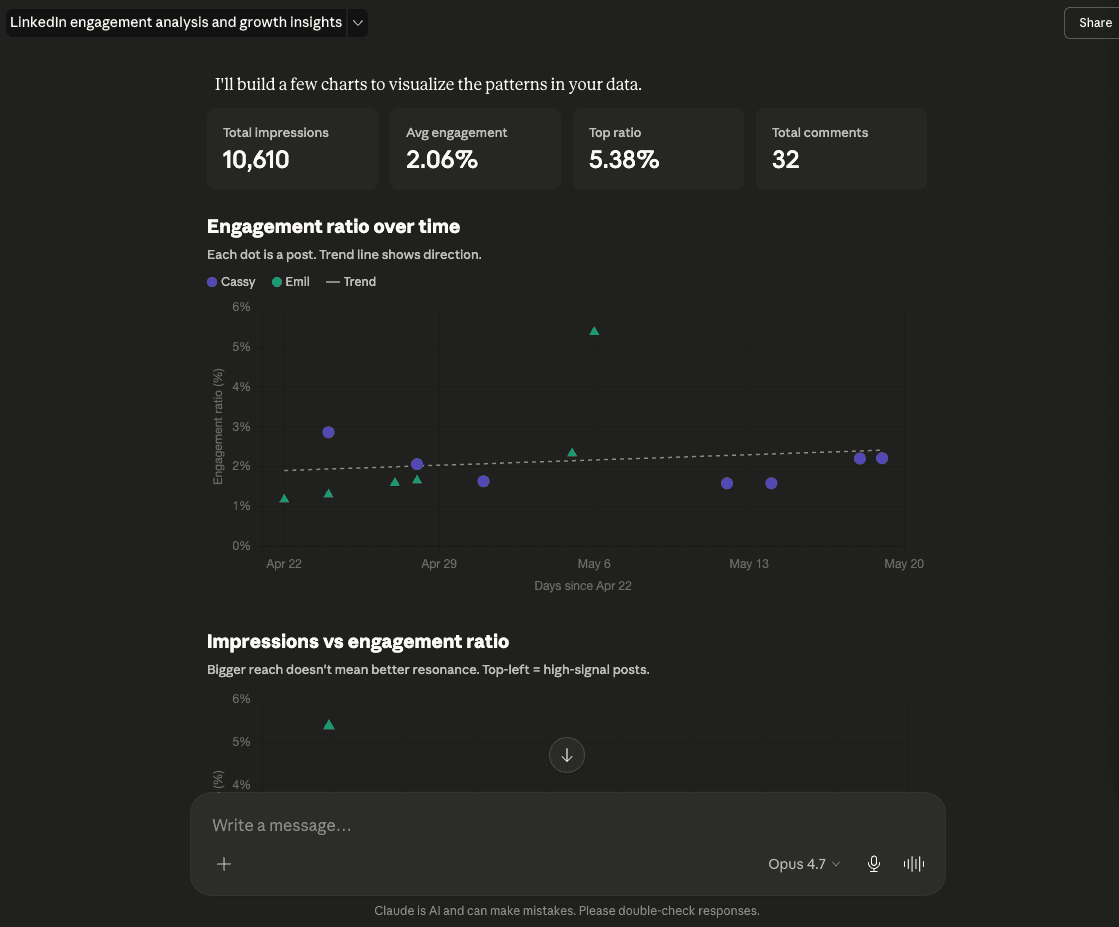
Run your LinkedIn without leaving Claude
Once connected, Claude works with your real posts, your writing guidance, and your performance data - not generic answers.
Draft in your voice
Claude pulls in your Postbeam content training - mission, audience, format rules - so every draft sounds like you, not generic AI filler.
Analyze what's working
Ask about your performance and Claude answers from your real analytics - it can even build charts from your impressions and engagement data.
Edit & schedule from chat
Review drafts, edit copy, and schedule posts to your connected LinkedIn - without ever opening another tab.
Bonus: once connected, the Generate / Edit with AI buttons inside Postbeam can open Claude directly - so the two stay one click apart in both directions.
Set up in Claude
Postbeam is in the Claude connector directory, so setup is one click: open the listing, connect, and authorize. Done in a few seconds.
- 1
Open Postbeam in the Claude connector directory
Find it at claude.ai/directory/connectors/postbeam or search for “Postbeam” in Claude's connector directory. Requires a paid Claude plan (Pro, Max, Team, or Enterprise). - 2
Click Connect
- 3
Sign in with your Postbeam account and approve access
A secure OAuth flow links Claude to your Postbeam account - revoke it anytime from your settings. New to Postbeam? Start with a free 7-day trial. - 4
Mention Postbeam in any chat
Try “Ask Postbeam to draft a LinkedIn post about our launch” or “How did my last post perform?”
Prefer to add it manually?
You can also add Postbeam as a custom connector with one URL - the same 2-minute copy-paste that works in Gemini and Poke too. Watch the walkthrough or follow the steps below.
Prefer to read? Follow the six steps below.
- 1
Open Claude and go to Customize → Connectors
Works on claude.ai or the desktop app. Custom connectors require a paid Claude plan (Pro, Max, Team, or Enterprise). - 2
Click the plus (+) sign
- 3
Click “Add custom connector”
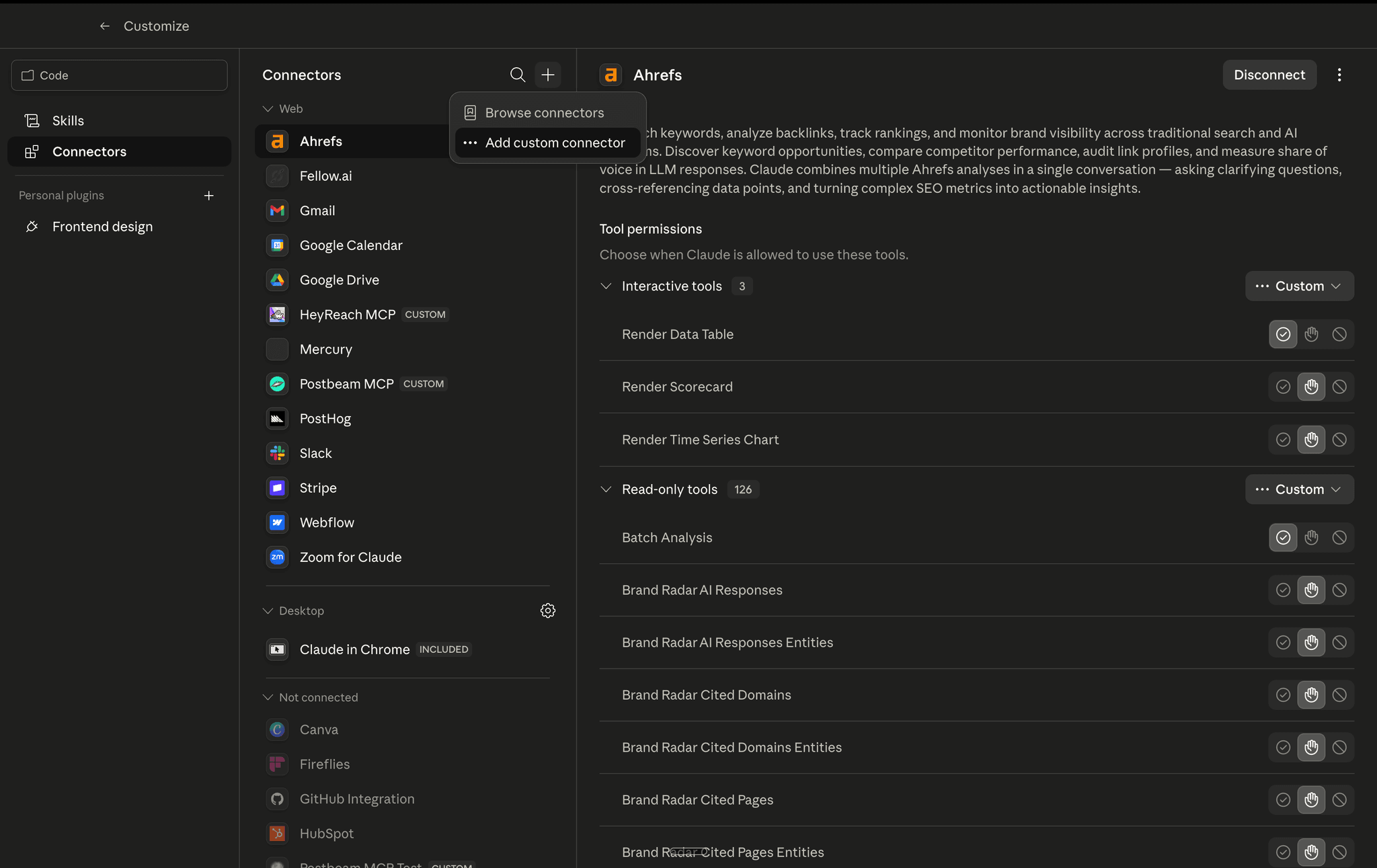
- 4
Paste the Postbeam MCP URL, give it a name, and click Add
MCP URL: - you can leave the advanced settings blank.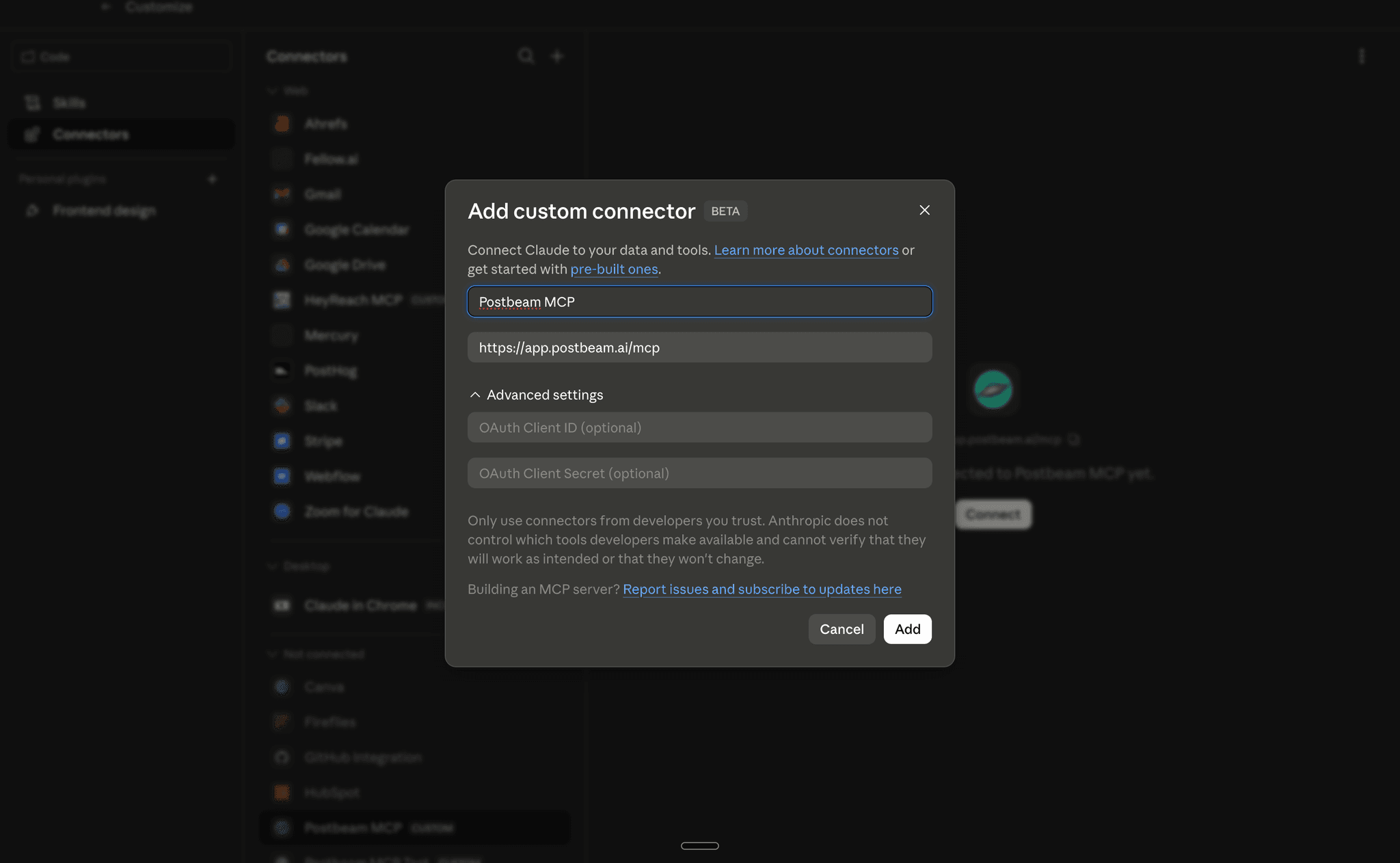
- 5
When Postbeam asks you to authorize, sign in and approve access
A secure OAuth flow connects Claude to your Postbeam account - you can revoke it anytime from your settings.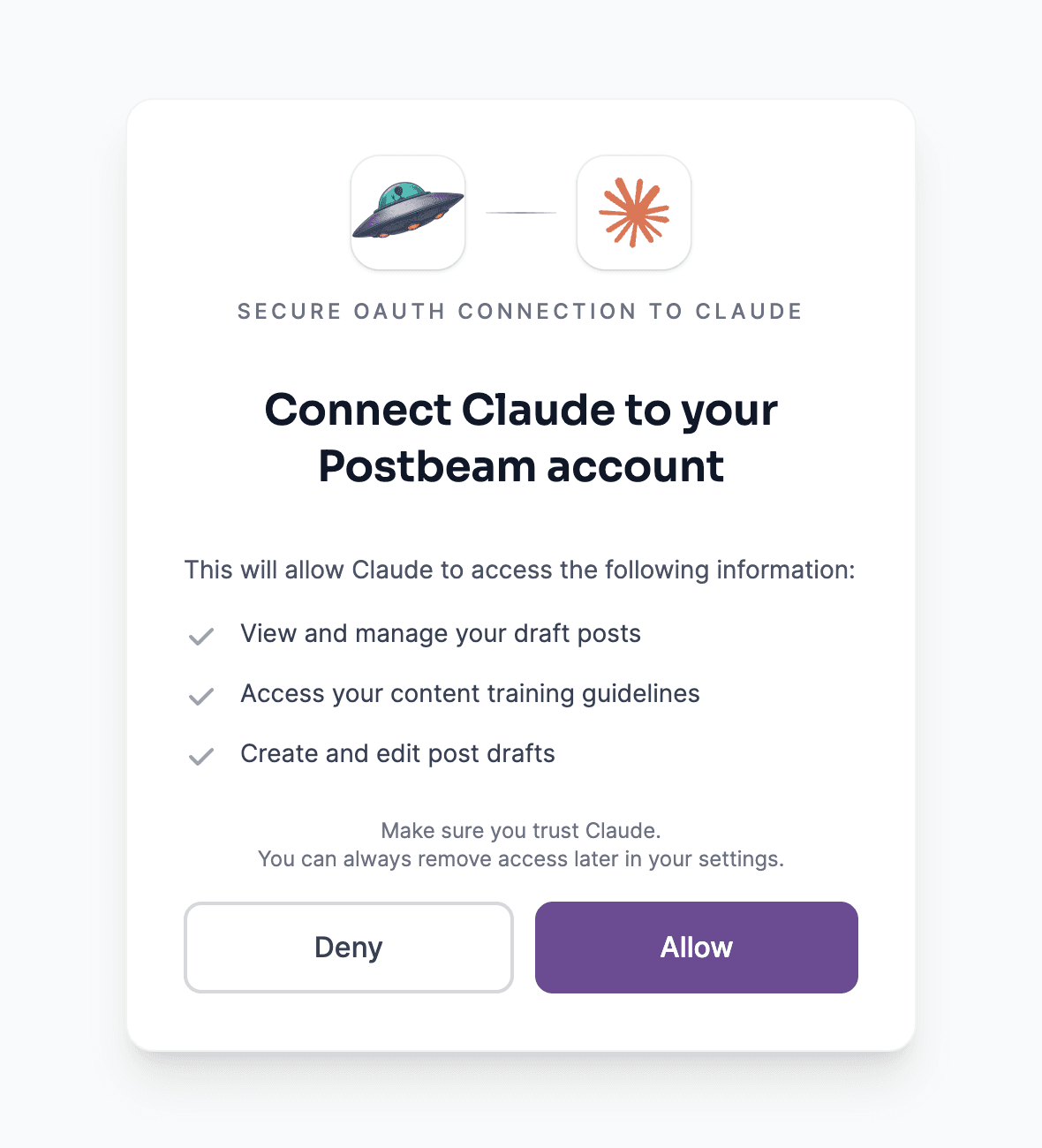
- 6
Done - mention Postbeam in any chat
Try “Ask Postbeam to draft a LinkedIn post about our launch” or “How did my last post perform?”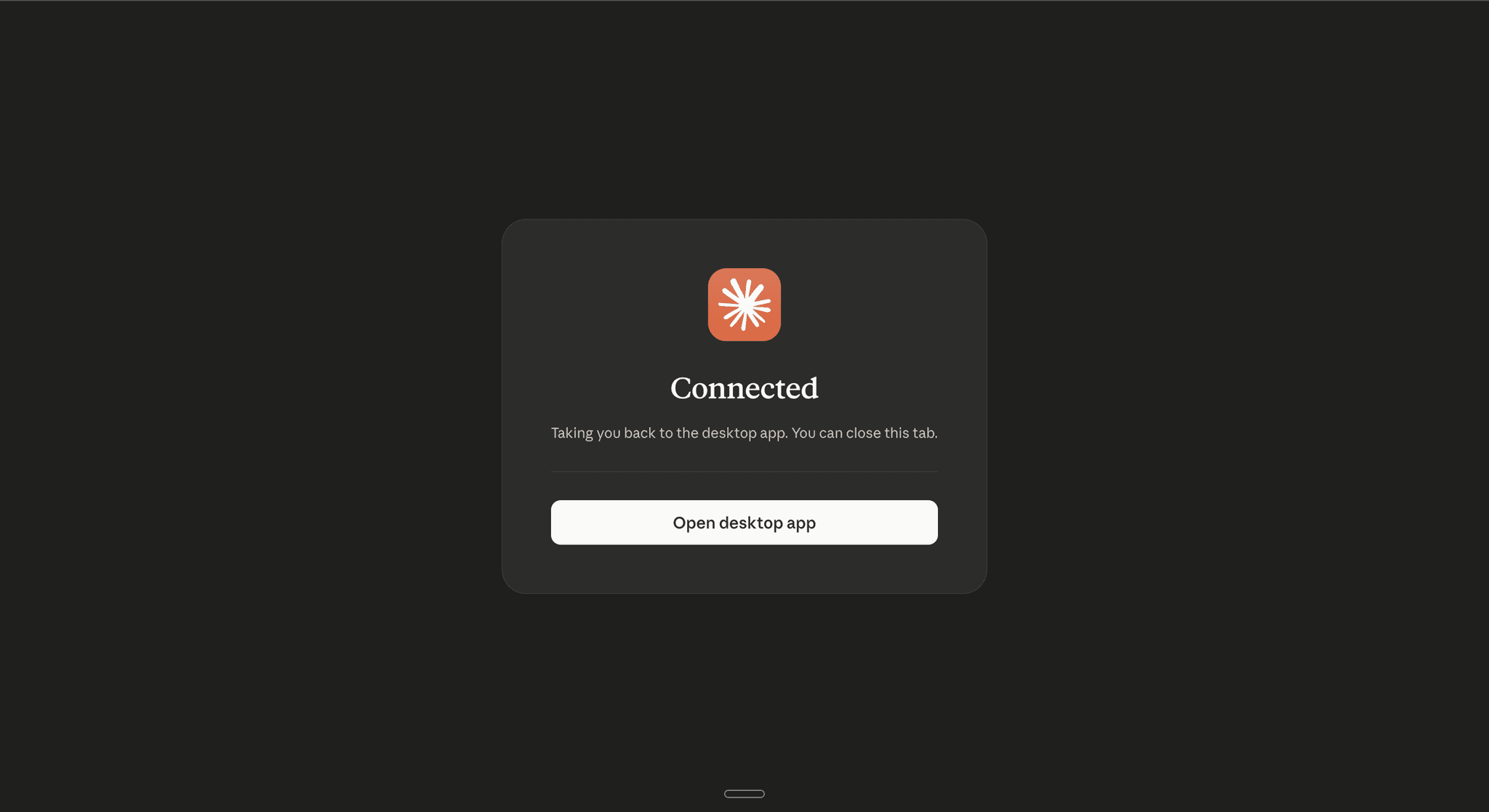
Seeing invalid_token / No authorization provided? That means you opened the URL directly in a browser - it's a connector endpoint, not a web page. Add it as a custom connector inside Claude (above) and authorize, and it'll work.
Frequently asked questions
Is there an 'Add to Claude' button?
Yes. Postbeam is officially listed in the Claude connector directory at claude.ai/directory/connectors/postbeam - open the listing, click Connect, and authorize your Postbeam account. It takes a few seconds and there's no code or URL-pasting involved.
Do I need a paid Claude plan?
Yes. Connectors require Claude Pro, Max, Team, or Enterprise - they aren't available on Claude's free plan. The integration itself is included with every Postbeam plan.
What can Claude do once connected?
Draft LinkedIn posts in your voice using your Postbeam content training, review and edit your drafts, approve and schedule posts to your connected LinkedIn, and analyze your performance data - including building charts from your impressions and engagement.
Is it safe?
Yes. You authorize access with your own Postbeam account through a secure OAuth flow, and you can revoke the connector at any time from your settings. Postbeam publishes through compliant, supported channels - nothing touches your LinkedIn login.
Will drafts publish automatically?
No. Drafts stay drafts until a person approves them, and approving or scheduling respects the permissions on your Postbeam account.
I see "invalid_token" or "No authorization provided" - what's wrong?
That error means you opened https://app.postbeam.ai/mcp directly in a browser. It's a connector endpoint, not a web page. Add it as a custom connector inside Claude and authorize, and it will work.
Does this work with other AI assistants?
Yes - the same MCP URL works in ChatGPT, Gemini, and Poke. ChatGPT users can also install the Postbeam app straight from the ChatGPT app directory with no manual setup.
How do I get support?
Email team@postbeam.ai - we respond within 2 business days.
Keep exploring
ChatGPT integration
Prefer ChatGPT? Install the Postbeam app straight from the app directory.
Slack integration
Notify your team in Slack the moment anyone publishes a post.
LinkedIn MCP
The full MCP guide - including Gemini and Poke setup.
Pricing
Simple plans - every integration is included in all of them.
Draft your next post from Claude
One click of setup, then your LinkedIn workflow lives in chat.