
The LinkedIn MCP for Claude, ChatGPT, Gemini & Poke
Connect your AI assistant to LinkedIn with Postbeam. Draft posts from your week, see what to post next, and run it all on a schedule - just by chatting. No terminal, no scripts, no account-safety risk.
Your server URL - paste it into any assistant below
Works with
 Poke
PokeTwo ways to set up a LinkedIn MCP server
Search “LinkedIn MCP” and you'll find open-source servers you run yourself - and Postbeam's hosted one. Here's the honest difference before you spend an afternoon in a terminal.
Open-source LinkedIn MCP server (DIY)
Community projects like linkedin-mcp-server
- Install uv/uvx or Docker and edit a JSON config by hand
- Logs in through your own LinkedIn browser session to read data
- Mostly reads profiles, companies, and jobs - not built to post
- You run it locally and keep it updated yourself
- Built for developers comfortable in a terminal
Postbeam LinkedIn MCP (hosted)
Recommended- Paste one URL and click Allow - no terminal, no config files
- Connects through secure OAuth with your Postbeam account
- Built to draft in your voice, pull analytics, and schedule posts
- Hosted and maintained by Postbeam - always on, nothing to update
- Built for anyone - no code or developer setup required
What is the Model Context Protocol (MCP)?
MCP is an open standard that lets AI assistants securely connect to outside tools. Postbeam's LinkedIn MCP is a small connector that gives your AI assistant permission to work with your Postbeam account - so you can draft posts, pull analytics, and manage your content without leaving the chat.
You connect with your own Postbeam account through a secure OAuth flow, you choose what it can access, and you can revoke it anytime from your settings.
What you can do with it
Once Postbeam is connected, your assistant can run your whole LinkedIn workflow from a chat box.
Draft posts from your week
Pull from your Slack, Gmail, and meeting notes and turn them into ready-to-review drafts in your voice.
Know what to post next
Ask what's working in your analytics and get your next post drafted in that exact style.
Repurpose meetings & threads
Turn a call recording, transcript, or long thread into a tight LinkedIn post.
Schedule posts
Line up drafts, attach images, and schedule them to publish - all from chat.
Run it on autopilot
Schedule recurring prompts so drafts and analytics reports land in your queue every week.
Stay on-brand
Every draft is written using your Postbeam content training, not generic AI filler.
Copy-paste prompts to try
Paste these straight into Claude, ChatGPT, Gemini, or Poke. The 🔁 Schedulable ones work even better as a recurring task (ChatGPT Tasks, Claude scheduled tasks, or a Poke automation) so the work lands in your queue automatically.
“Every Monday at 8am, review my Slack, Gmail, and last week's meeting recordings, then draft 3 LinkedIn posts in my voice for me to review - and attach a relevant image to each.”
“Every Friday, analyze my LinkedIn analytics for the past week. Tell me my best-performing post and why it worked, then draft 2 new posts in that style.”
“Each morning, find what's trending in my industry and draft one timely LinkedIn post with a strong hook for me to approve.”
“Show me my 10 most recent drafts and tell me which ones are ready to publish.”
“Based on what's performed best for me lately, what should I post next? Draft it.”
“Turn the key takeaways from my last meeting into a LinkedIn post draft with an image.”
Set it up - pick your assistant
One-click installs for Claude and ChatGPT from their official directories, under two minutes for Poke, and a couple more for the Gemini CLI.
Prefer to read? Pick your assistant and follow the steps below.
- 1
Get a paid Claude plan
Connectors require Claude Pro, Max, Team, or Enterprise - they aren't available on the free plan. - 2
Open Postbeam in the Claude connector directory and click Connect
Postbeam is officially listed at claude.ai/directory/connectors/postbeam - no URLs to paste. Prefer manual setup? Add a custom connector with the server URL instead. - 3
Click Allow to authorize your Postbeam account
A secure OAuth flow connects Claude to your Postbeam account - you can revoke it anytime from your settings.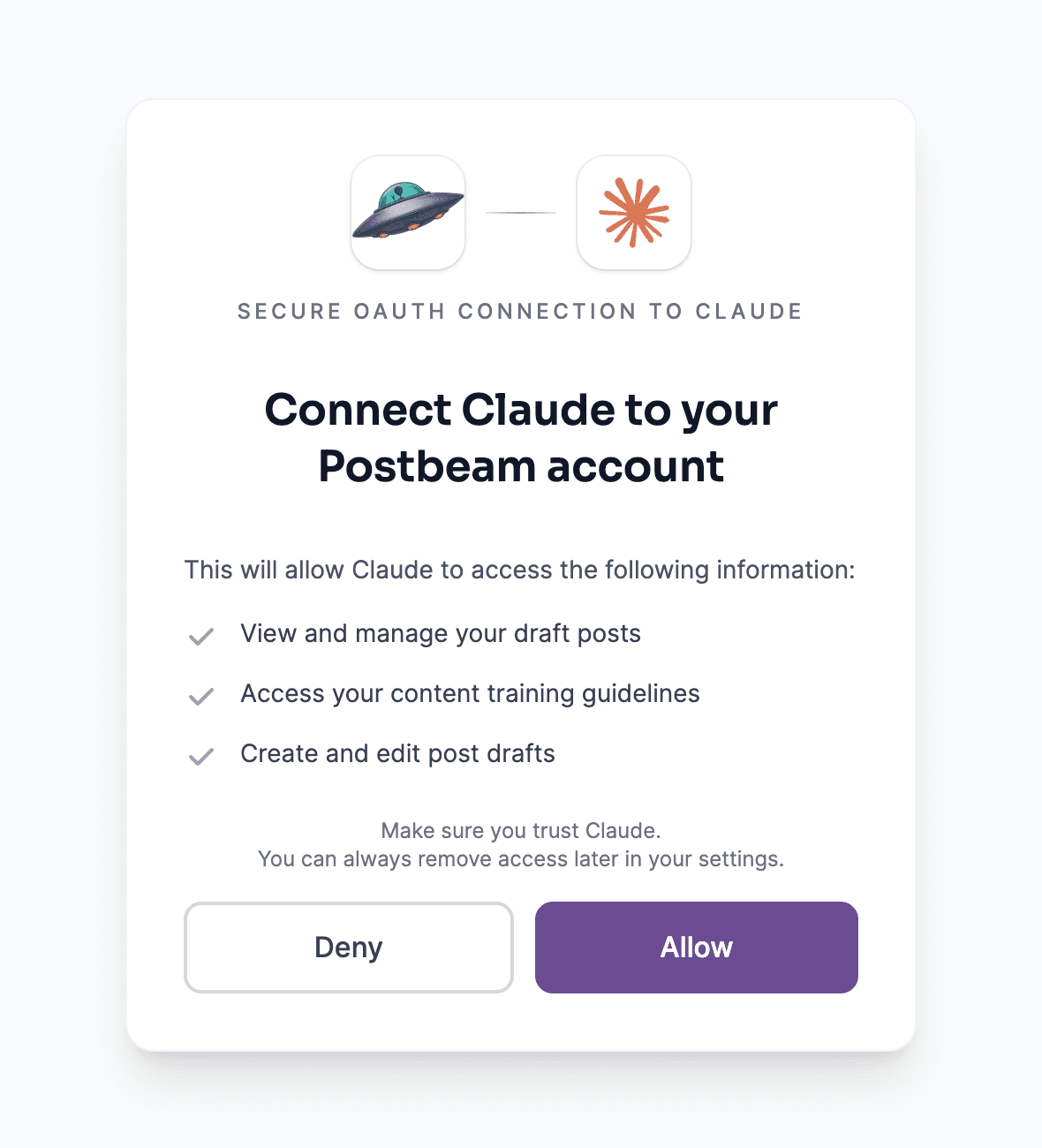
- 4
Done - start chatting
Try “Draft a LinkedIn post about our launch” or “How did my last post perform?”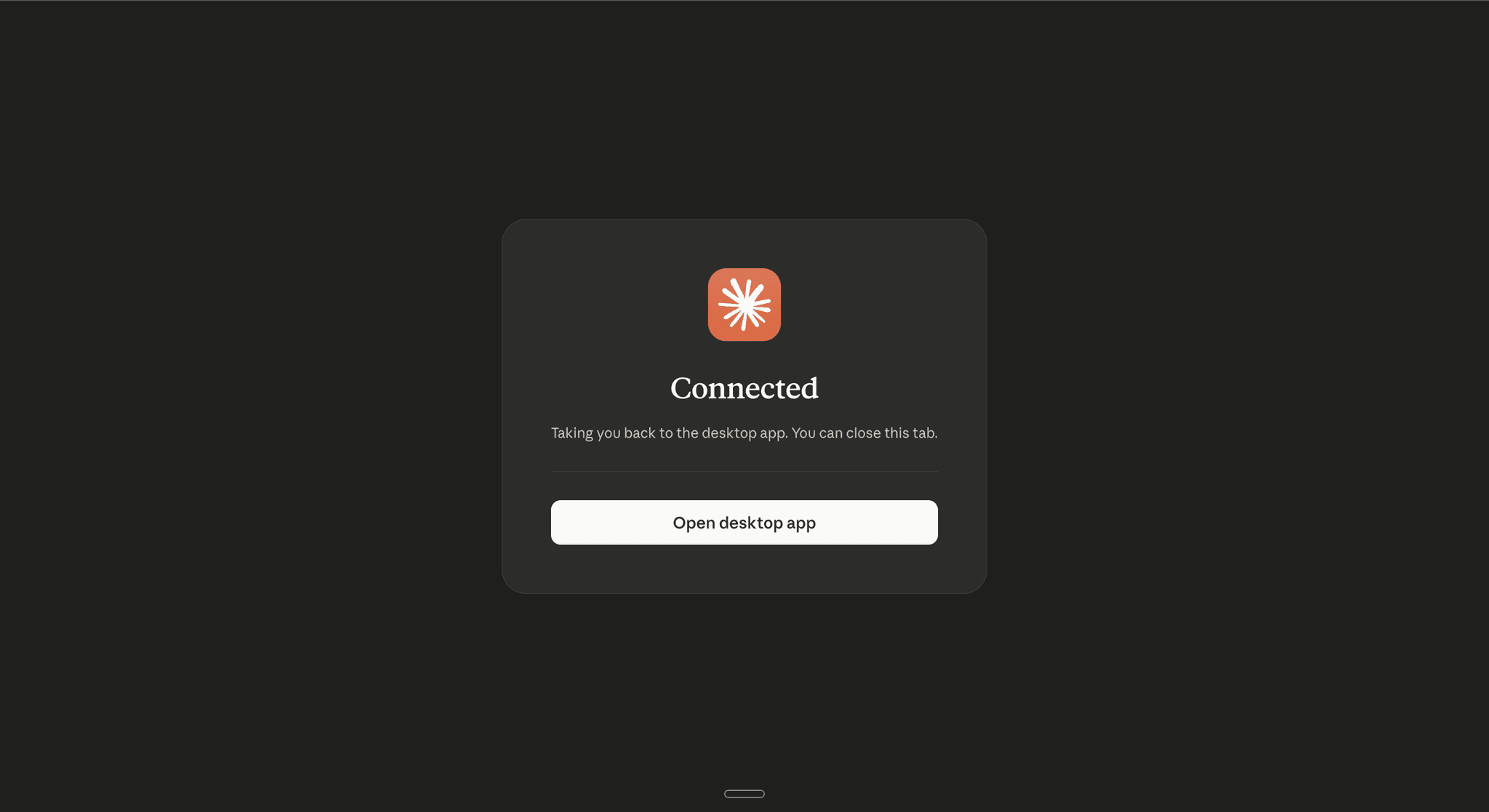
Seeing invalid_token / No authorization provided? That means you opened the URL directly in a browser - it's a connector endpoint, not a web page. Don't visit it; add it as a custom connector (above) and authorize, and it'll work.
Another MCP client? Postbeam works with any tool that supports custom MCP connectors - add the URL https://app.postbeam.ai/mcp and authorize your Postbeam account. Adding it takes under a minute.
Keep exploring
LinkedIn for GTM teams
Turn team-wide posting into a warm pipeline engine.
Free LinkedIn tools
Hook, carousel, SSI, and 7 more - no signup.
LinkedIn MCP server: open-source vs hosted
How to set one up - and the account-safety catch.
Best LinkedIn automation tools
What's worth using in 2026 (and what to avoid).
Or see Postbeam pricing.
Run LinkedIn from your AI assistant
Connect the LinkedIn MCP and start drafting, scheduling, and analyzing by chat.