

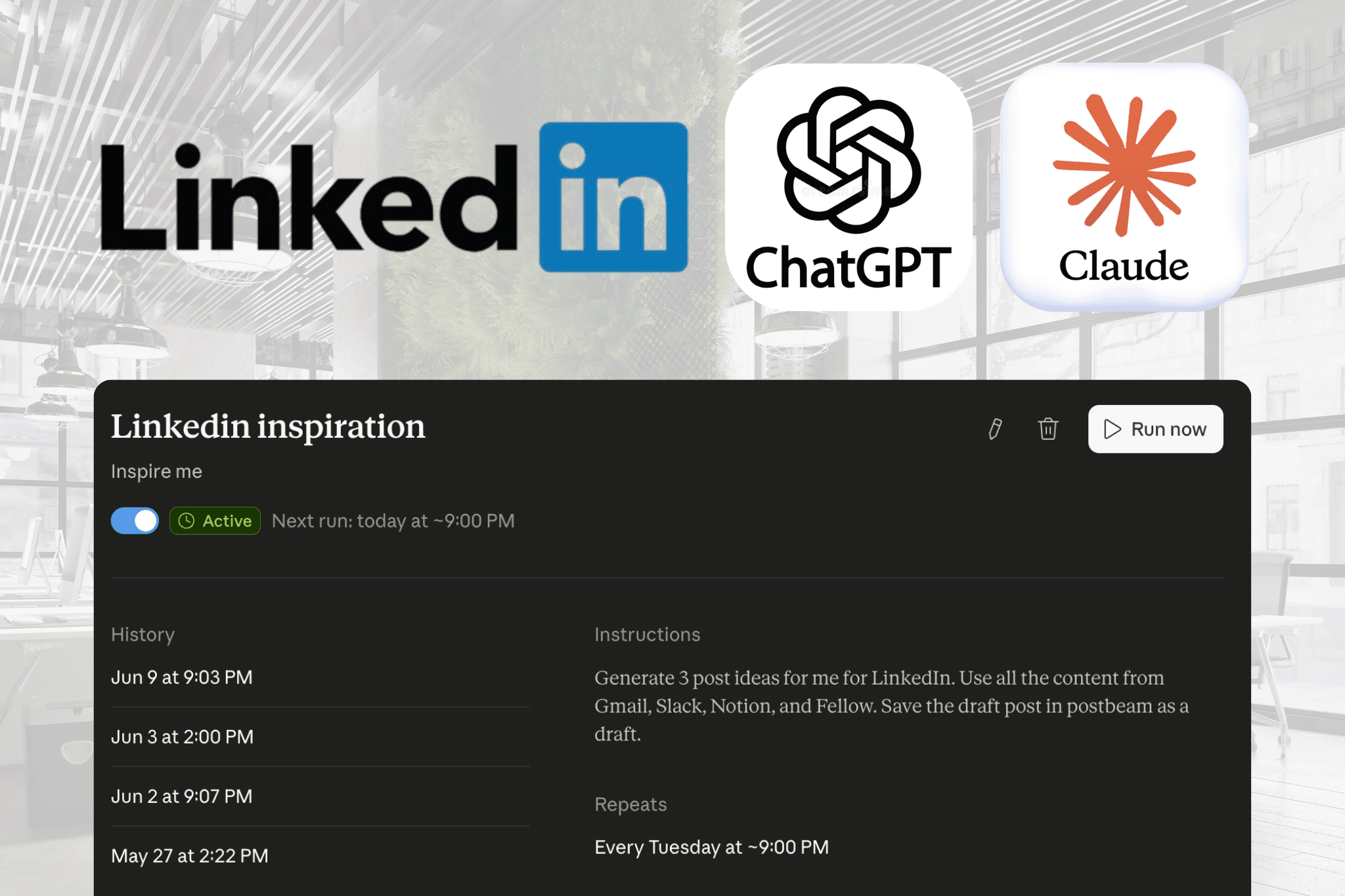
Search “LinkedIn MCP” and you'll mostly find one of two things: an open-source server you install and run yourself, or a hosted connector you just plug in. They sound similar, but they're built for very different people - and one of them comes with an account-safety warning that's easy to miss.
This guide explains what a LinkedIn MCP server is, how to set up the popular open-source one, what it can and can't do, and how the hosted approach compares - so you can pick the right one before you spend an afternoon in a terminal.
The short version
- 1.Open-source (e.g. linkedin-mcp-server): free, but you install
uv, edit a JSON config in a terminal, and log in through your own browser session. It mostly reads LinkedIn data, and ships with a “no guarantee of account safety” disclaimer. - 2.Hosted (Postbeam): no terminal - paste one URL into Claude, ChatGPT, Gemini, or Poke and authorize with OAuth. Built to draft, analyze, and schedule posts, and it doesn't automate your login.
Want the no-code route? Jump to the 2-minute hosted setup →
What Is a LinkedIn MCP Server?
The Model Context Protocol (MCP) is an open standard that lets AI assistants securely connect to outside tools and data. A LinkedIn MCP server is simply an MCP connector for LinkedIn: it gives an assistant like Claude, ChatGPT, Gemini, or Poke permission to work with LinkedIn on your behalf.
What “work with LinkedIn” means depends on the server. Some are built to read data - looking up profiles, companies, or job listings. Others, like Postbeam's, are built for the content workflow: drafting posts in your voice, pulling your analytics, and scheduling. That difference matters more than the setup instructions, so keep it in mind as we go.
The Two Kinds of LinkedIn MCP Server
🛠️ Open-source (DIY)
You install and run it yourself. Free, flexible, and great for developers - but it's a terminal-and-config setup that reads LinkedIn through your own browser session.
☁️ Hosted (no-code)
Someone runs the server for you. You connect with one URL and an OAuth sign-in. Built for anyone, and designed around safely creating and scheduling posts.
Option 1: The Open-Source LinkedIn MCP Server
The best-known one is linkedin-mcp-server - an independent, community project (not affiliated with LinkedIn, supported by Unipile) that lets AI assistants read LinkedIn data through your own logged-in browser session.
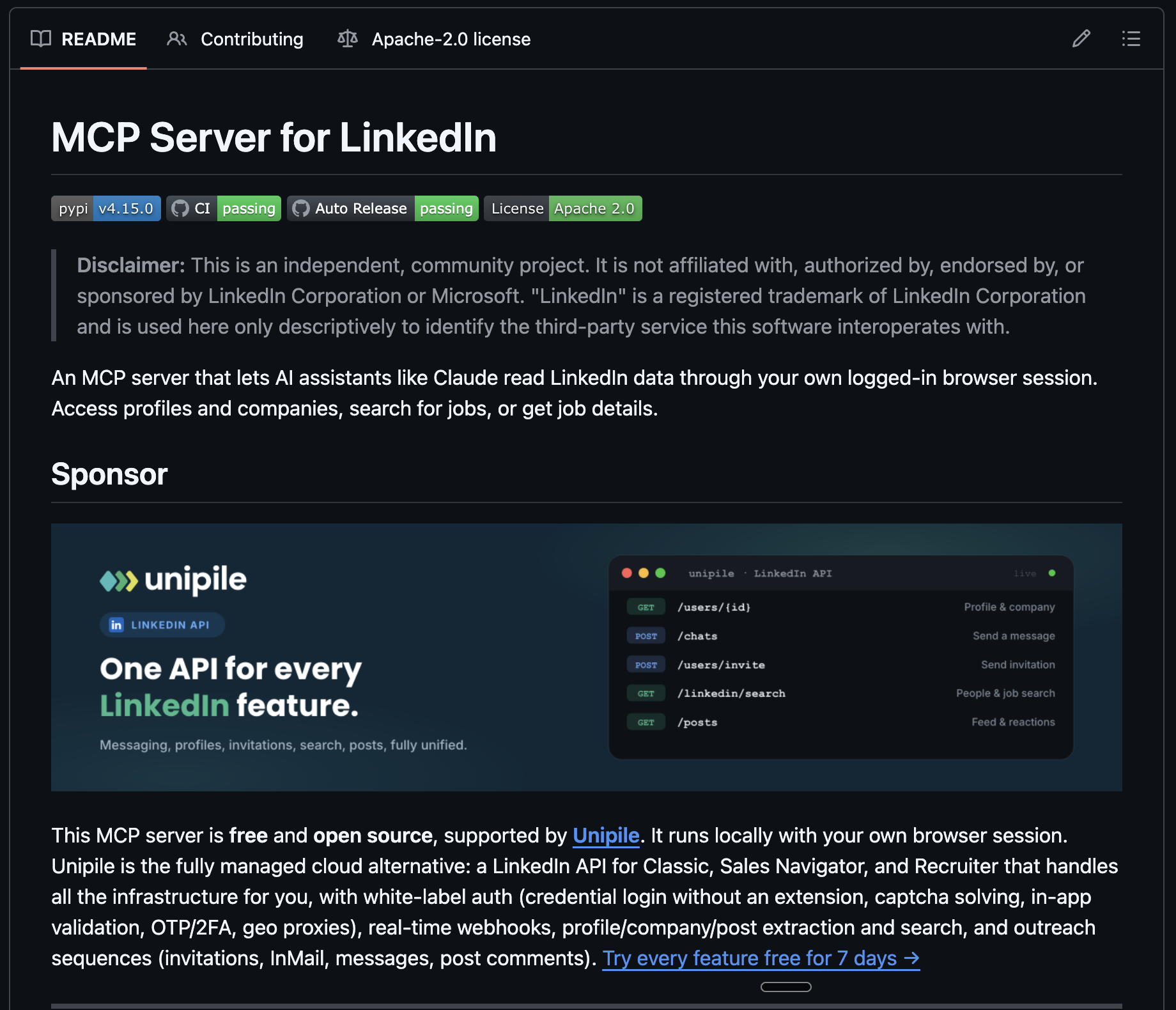
It's genuinely useful if you want an assistant to pull profile, company, or job data. Here's the gist of setting it up.
How to Set Up the Open-Source Server (Step-by-Step)
Before you start, you'll need:
- •A LinkedIn account you're logged into (the server acts through your own session)
- •uv installed (it ships with uvx, the recommended runner)
- •An MCP client like Claude Desktop - the server runs locally and connects to it
First, install uv (macOS / Linux):
curl -LsSf https://astral.sh/uv/install.sh | shThen add the server to your MCP client's config (e.g. Claude Desktop's claude_desktop_config.json):
{
  "mcpServers": {
    "linkedin": {
      "command": "uvx",
      "args": ["mcp-server-linkedin@latest"],
      "env": { "UV_HTTP_TIMEOUT": "300" }
    }
  }
}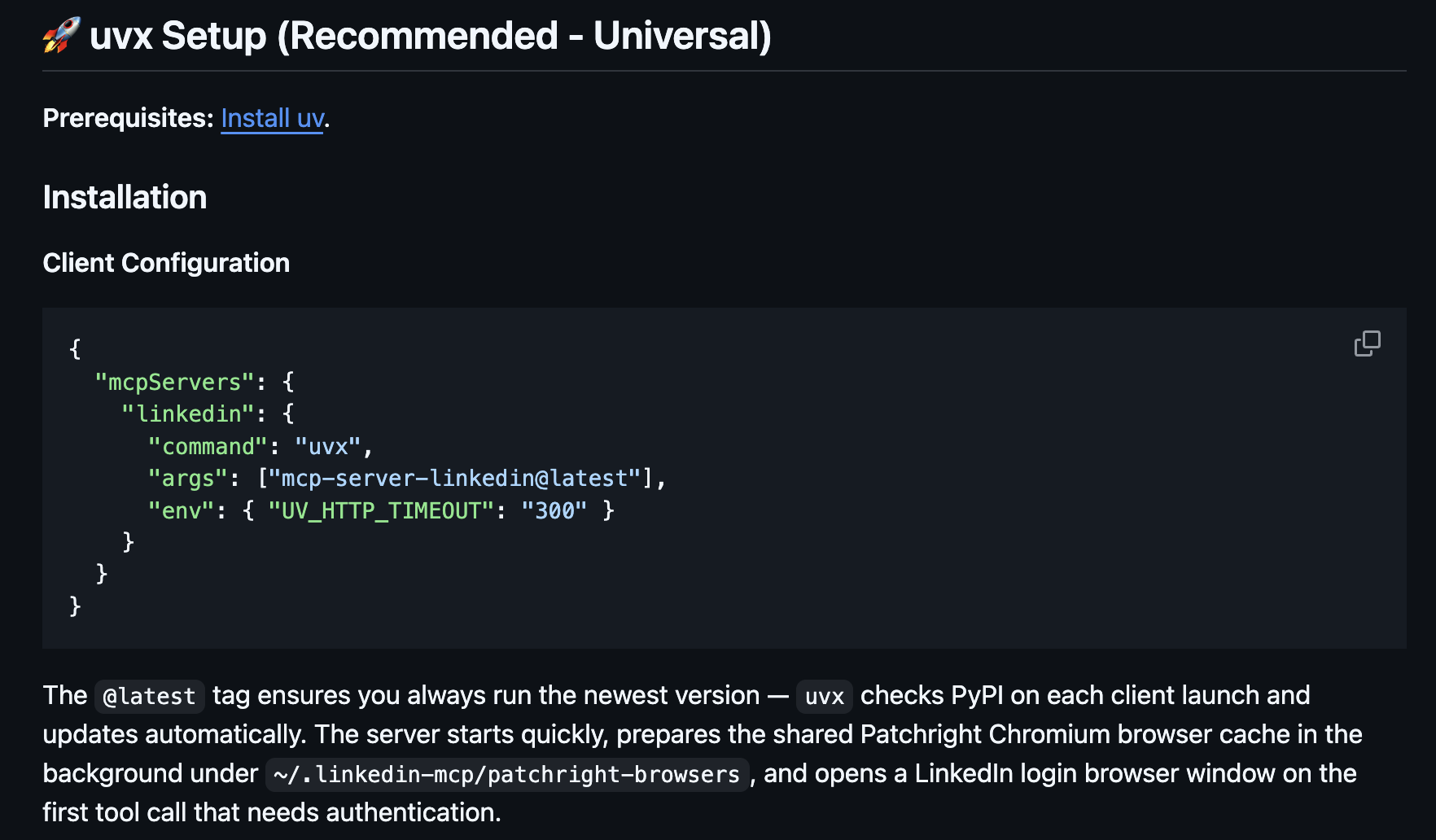
Restart your client. On the first tool call, the server opens a LinkedIn login window and stores a local browser session - then you're connected. The full step-by-step:
Install uv (and uvx)
The recommended setup runs the server with uvx, which ships with uv. Install uv first - on macOS/Linux that's a single curl command; on Windows it's a PowerShell one-liner.
Add the server to your client config
In your MCP client (e.g. Claude Desktop), edit the JSON config and add a "linkedin" server that runs uvx mcp-server-linkedin@latest. The @latest tag re-checks PyPI on each launch so you always run the newest version.
Authenticate through your browser session
On the first tool call, the server opens a LinkedIn login window and stores a Chromium session locally. From then on it acts through your own logged-in LinkedIn account.
Ask your assistant to read LinkedIn data
Once connected, you can ask it to look up a profile, pull company details, search jobs, or fetch job details - the things the server is built to read.
✅ What it can do
- •Look up a person's LinkedIn profile
- •Pull company details
- •Search for jobs
- •Get details on a specific job
🚫 What it won't do
- ✗Draft posts in your voice
- ✗Pull your post analytics
- ✗Schedule or publish content
- ✗Run on a recurring autopilot
Looks like a lot for “just connect LinkedIn”?
If you only want to draft, analyze, and schedule posts - skip the terminal entirely. Postbeam's hosted LinkedIn MCP is one URL and a 2-minute setup.
The Catch: Account Safety
Because the open-source server acts through your own logged-in LinkedIn session, it lives in the same gray area as any browser-automation tool. The project is upfront about this, and so should you be:
“Use at your own risk; there is no guarantee of account safety.”- from the linkedin-mcp-server documentation
Why the warning? LinkedIn's User Agreement discourages automated access that isn't through its official APIs, and accounts that trip its automation detection can be restricted or suspended. Browser-session tools operate in that gray area by design - it's the trade-off for being free and unofficial.
That's not a knock on the project - it's an honest disclaimer. But if your LinkedIn account is tied to your pipeline or your job, it's worth weighing before you automate your own session. A hosted option that works through supported channels and OAuth (rather than driving your login) sidesteps that question entirely.
Option 2: The Hosted LinkedIn MCP (Postbeam)
If you don't want a terminal, a JSON config, or that account-safety question hanging over you, the hosted route is simpler. Postbeam's LinkedIn MCP is a connector someone else runs for you. You add one URL and authorize with OAuth - no install, nothing to maintain.
It's also built for a different job. Instead of just reading LinkedIn, it runs your content workflow from chat: draft posts in your voice from your week's Slack, email, and meetings; ask what's working in your analytics; and schedule posts - in Claude, ChatGPT, Gemini, or Poke.
- ✓Connects through secure OAuth with your Postbeam account, revocable anytime
- ✓Publishes through compliant, supported channels - not by automating your login
- ✓Works with Claude, ChatGPT, Gemini & Poke using the same server URL
- ✓No code, no terminal - setup takes under two minutes
Open-Source vs Hosted: Side by Side
| Open-source (DIY) | Postbeam (hosted) | |
|---|---|---|
| Setup | Install uv/uvx or Docker, hand-edit a JSON config in a terminal | Paste one URL, click Allow - no terminal, no config files |
| Login method | Automates your own LinkedIn browser session | Secure OAuth with your Postbeam account (revocable anytime) |
| Main job | Reads profiles, companies, and jobs | Drafts posts in your voice, pulls analytics, and schedules posts |
| Works with | Claude Desktop and other MCP clients | Claude, ChatGPT, Gemini & Poke |
| Maintenance | You run it locally and keep it updated | Hosted and maintained for you - always on |
| Account safety | "Use at your own risk; there is no guarantee of account safety" | Publishes through compliant, supported channels |
| Best for | Developers who want raw LinkedIn data reads | Anyone who wants to run their LinkedIn content from chat |
Set Up a LinkedIn MCP in Under 2 Minutes
Skip the terminal. Connect Postbeam's LinkedIn MCP to Claude, ChatGPT, Gemini, or Poke with one URL - then draft, analyze, and schedule by chat.
See the setup guide →Which One Should You Choose?
Go open-source if you're a developer who wants raw LinkedIn data reads inside your own MCP client, you're comfortable in a terminal, and you accept the account-safety trade-off of automating your session.
Go hosted with Postbeam if you want to actually run your LinkedIn presence from chat - drafting in your voice, checking analytics, and scheduling - without code and without putting your account on the line.
Frequently Asked Questions
What is a LinkedIn MCP server?+
How do I set up a LinkedIn MCP server?+
Is the open-source LinkedIn MCP server safe?+
Can a LinkedIn MCP server post for me?+
Does a LinkedIn MCP work with ChatGPT, Gemini, and Poke - not just Claude?+
Do I need to know how to code to use a LinkedIn MCP?+
Can a LinkedIn MCP server get my account banned?+
Is linkedin-mcp-server affiliated with LinkedIn?+
Is there a free LinkedIn MCP server?+
What's the difference between an MCP server and the LinkedIn API?+
Related Articles
LinkedIn MCP: Connect Claude, ChatGPT, Gemini & Poke →
The full setup guide for Postbeam's hosted LinkedIn MCP.
9 Best LinkedIn Automation Tools in 2026 →
What's worth using - and what to avoid.
LinkedIn Outreach Automation →
How to build a system that actually works.
Free LinkedIn Tools →
Hook, carousel, SSI, and 7 more - no signup.
SEO Migration Checklist →
Move your site to a Claude Code stack without losing rankings.
Run LinkedIn From Your AI Assistant
Connect Postbeam's LinkedIn MCP and start drafting, scheduling, and analyzing your LinkedIn - just by chatting.
Connect the LinkedIn MCP →