

This SEO migration checklist exists because three different people asked me the same question in a week: how do I move my website off Webflow (or WordPress, or Framer) to something I can edit with AI, without torching my Google rankings? The first time, I just helped. The third time, I recorded the whole process. This is that guide, written down.
The prize at the end is worth being clear about: a marketing or brochure website on steroids. Once your site is custom code in a Git repo, you don't need someone technical to manage it. The people who actually know how to sell your product - marketing, sales, whoever has the voice of the customer - can change the website by describing the change to Claude. We moved postbeam.ai this way, and the blog you're reading right now is published through this exact stack.
The SEO migration checklist
- ☐1. Protect your SEO with a Cloudflare proxy - Same domain, no subdomains - route /blog (or any path) to the new server while everything else stays put.
- ☐2. Create a GitHub repository - Version control for your website - the undo button that makes AI edits safe.
- ☐3. Install Claude Code - The AI agent that builds, edits, and debugs the new site from plain English.
- ☐4. Clone your current design - Use Google Stitch (or same.dev, or Claude itself) to extract your styling into build instructions.
- ☐5. Build the new site in plan mode - Paste the design export into Claude Code, let it plan, approve, and let it one-shot the build.
- ☐6. Deploy on Vercel - Connect the GitHub repo once; every future change auto-deploys when it's pushed.
- ☐7. Test, fix, and polish - Run it locally, fix build errors by asking Claude, fine-tune elements in Cursor.
Golden rules throughout: same domain, same URLs, no subdomains, and nothing goes live until it's verified locally.
Step 1: Protect your SEO with a Cloudflare proxy
This is the step that makes it a safe migration instead of a gamble, and it's the one to get right if you only do one thing carefully. Create a free Cloudflare account, add your domain, and update your nameservers at your registrar (Namecheap, GoDaddy - wherever you bought the domain). Fair warning: this is the "technical patience" part of the guide. You need access to your DNS, and registrars all have good instructions for the nameserver swap.
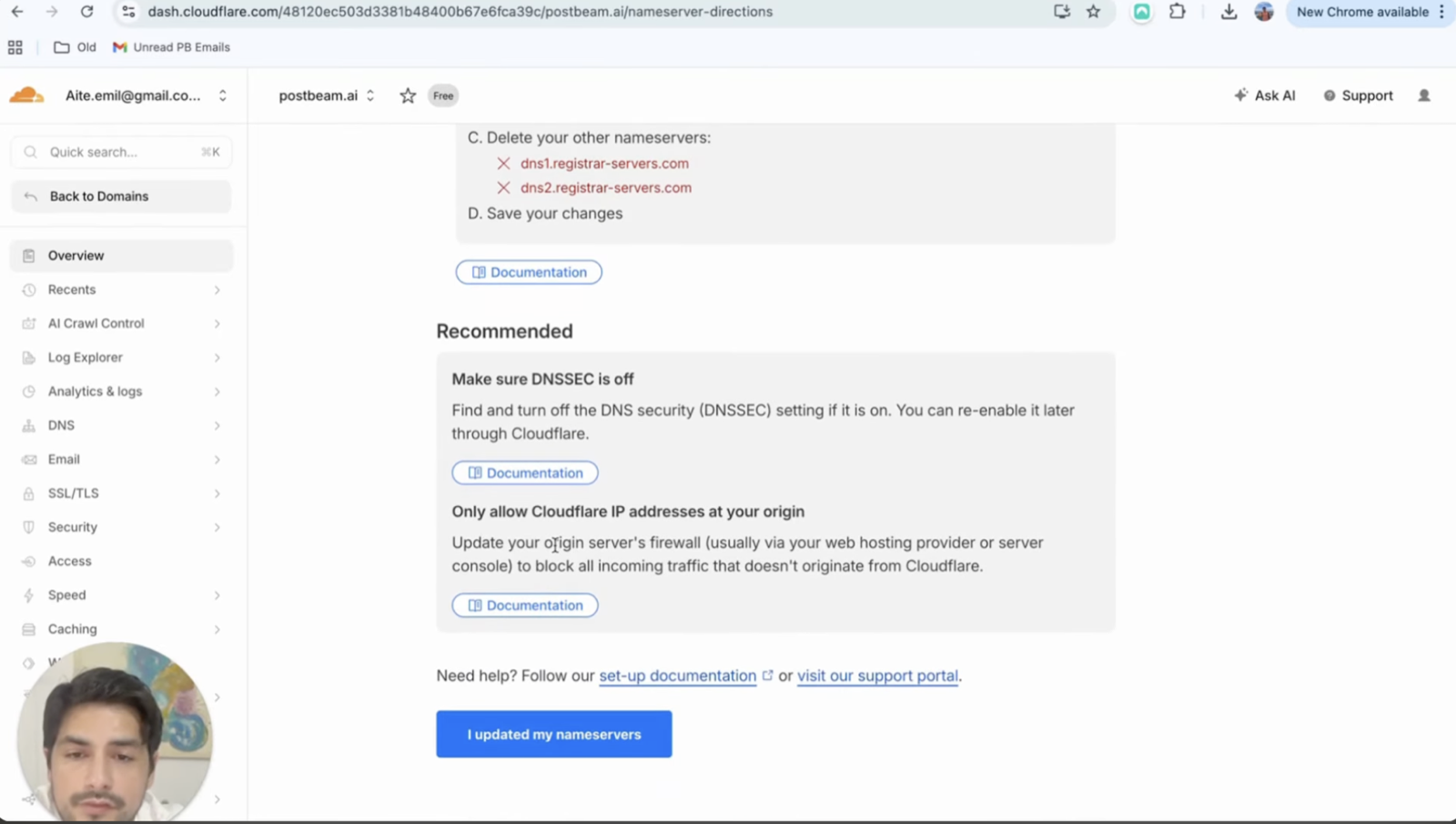
Why bother? Because Cloudflare lets you split traffic on the same domain. A proxy rule can send yoursite.com/blog to your new server while everything else keeps hitting Webflow or WordPress. Same domain, same URLs - which is exactly what Google wants (they're explicit about preferring paths over subdomains, and it protects your crawl budget). That's how we're migrating hoppier.com: the blog is huge, so new pages go to the new stack and old pages stay put until they're moved, and Google barely notices.
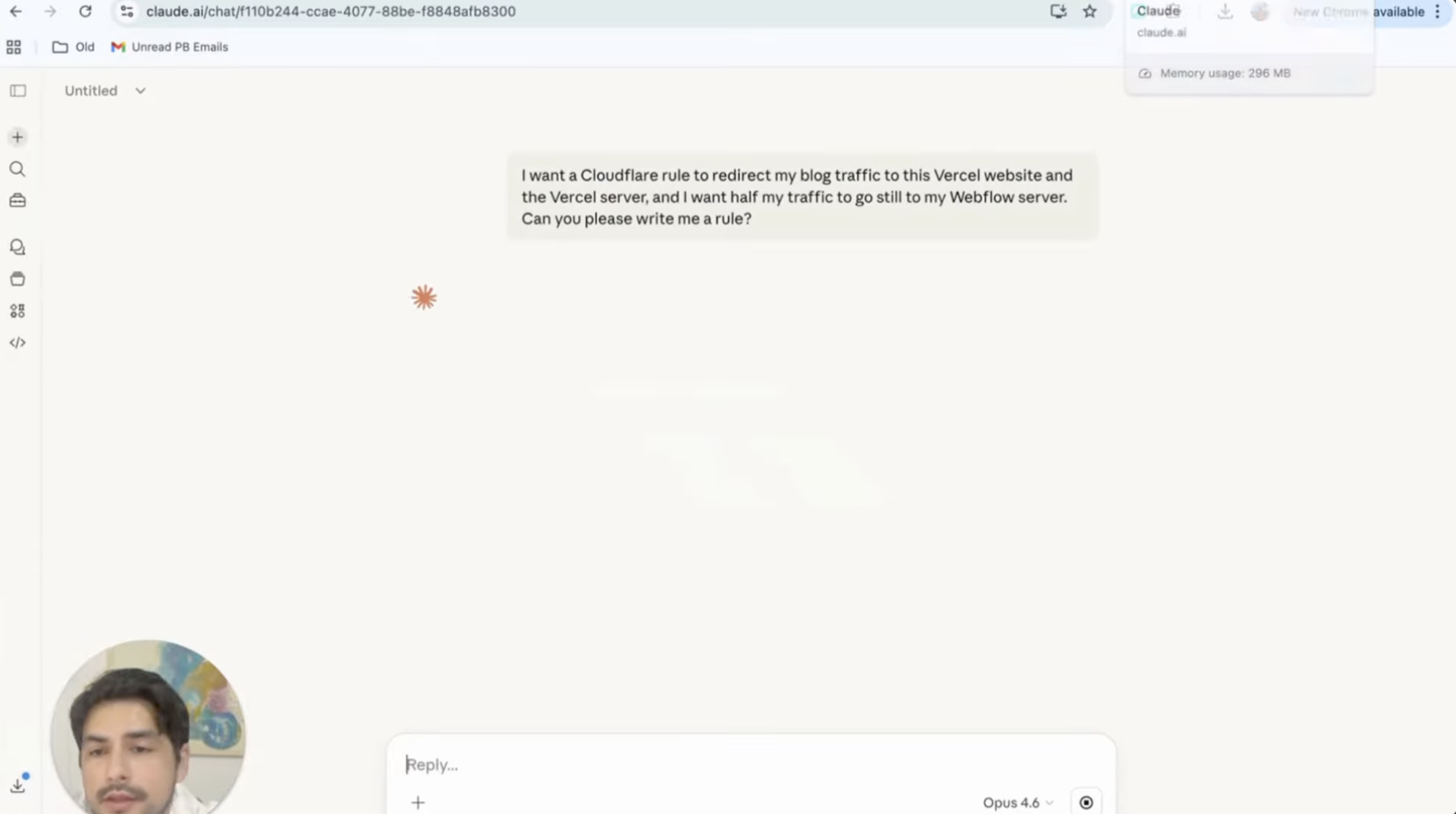
If you're moving the whole site at once, you can skip the rule-writing and just point the domain at the new host at the end. But for anything with meaningful existing traffic, partial migration behind a proxy is the low-risk path.
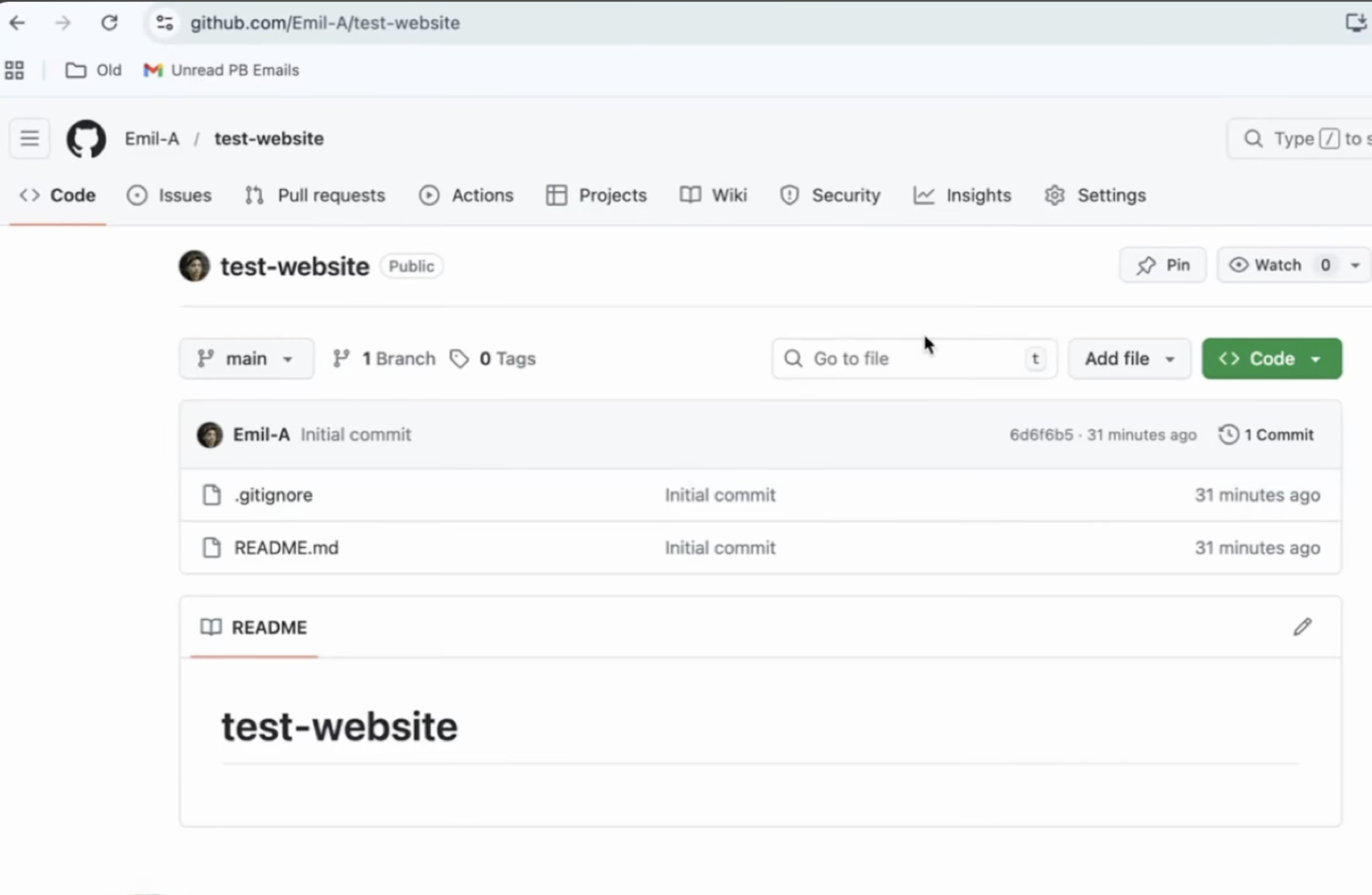
Step 2: Create a GitHub repository
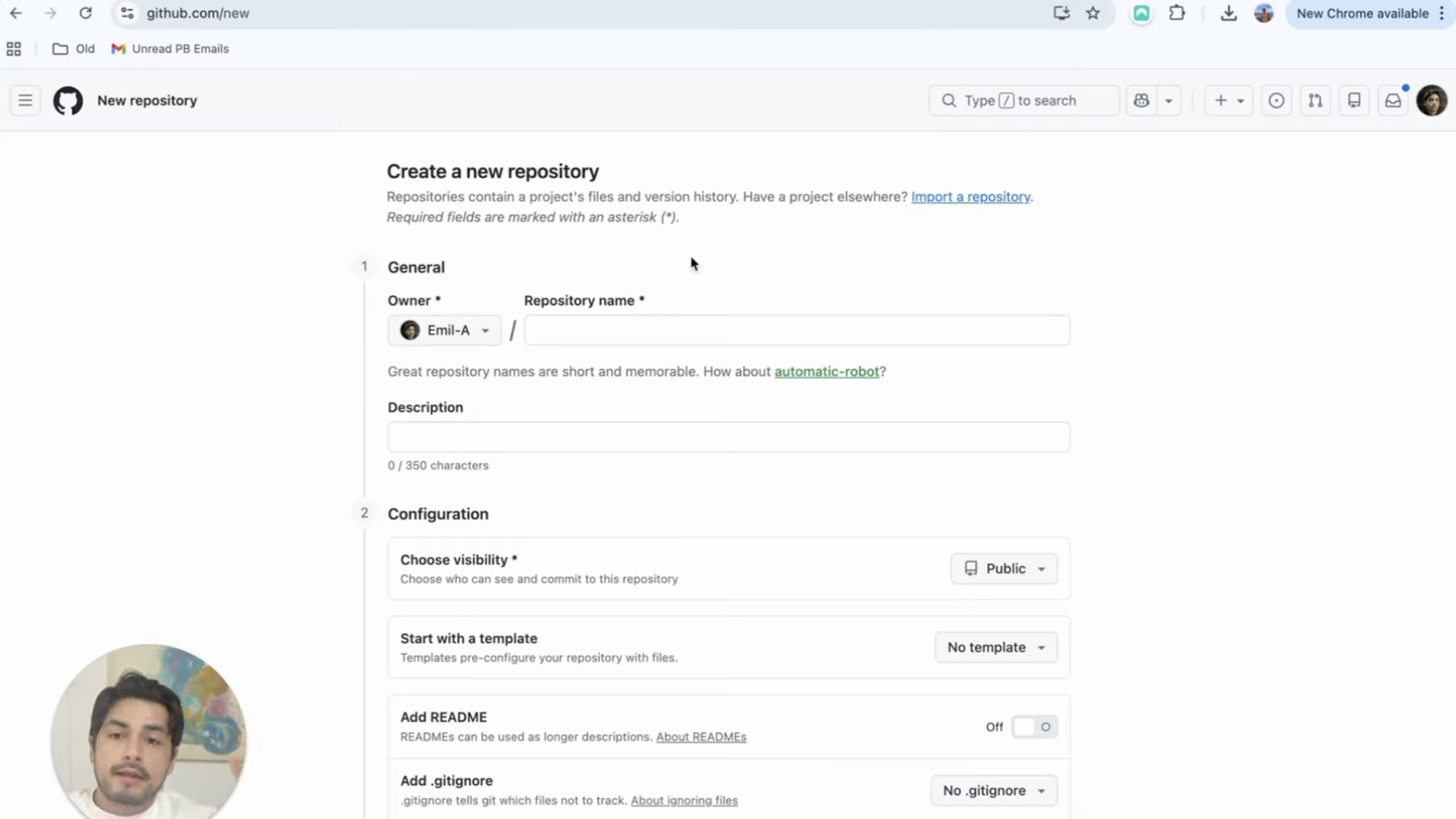
If you've never used GitHub: it's version control for code, and the closest analogy is Google Docs history for your website. Multiple people can make changes, every change is recorded, and if someone (or some AI) royally messes up, you roll back and you're fine. That undo button is precisely what makes letting AI edit your website safe.
Step 3: Install Claude Code (or use the Cowork app)
Claude Code is the AI agent that will do the actual building. Install it with one command from the Claude Code site - it runs in Terminal on Mac, console on Windows. Not comfortable in a terminal at all? Use the Claude desktop app's Cowork mode instead: same agent, friendlier interface, and every step in this guide works there too.
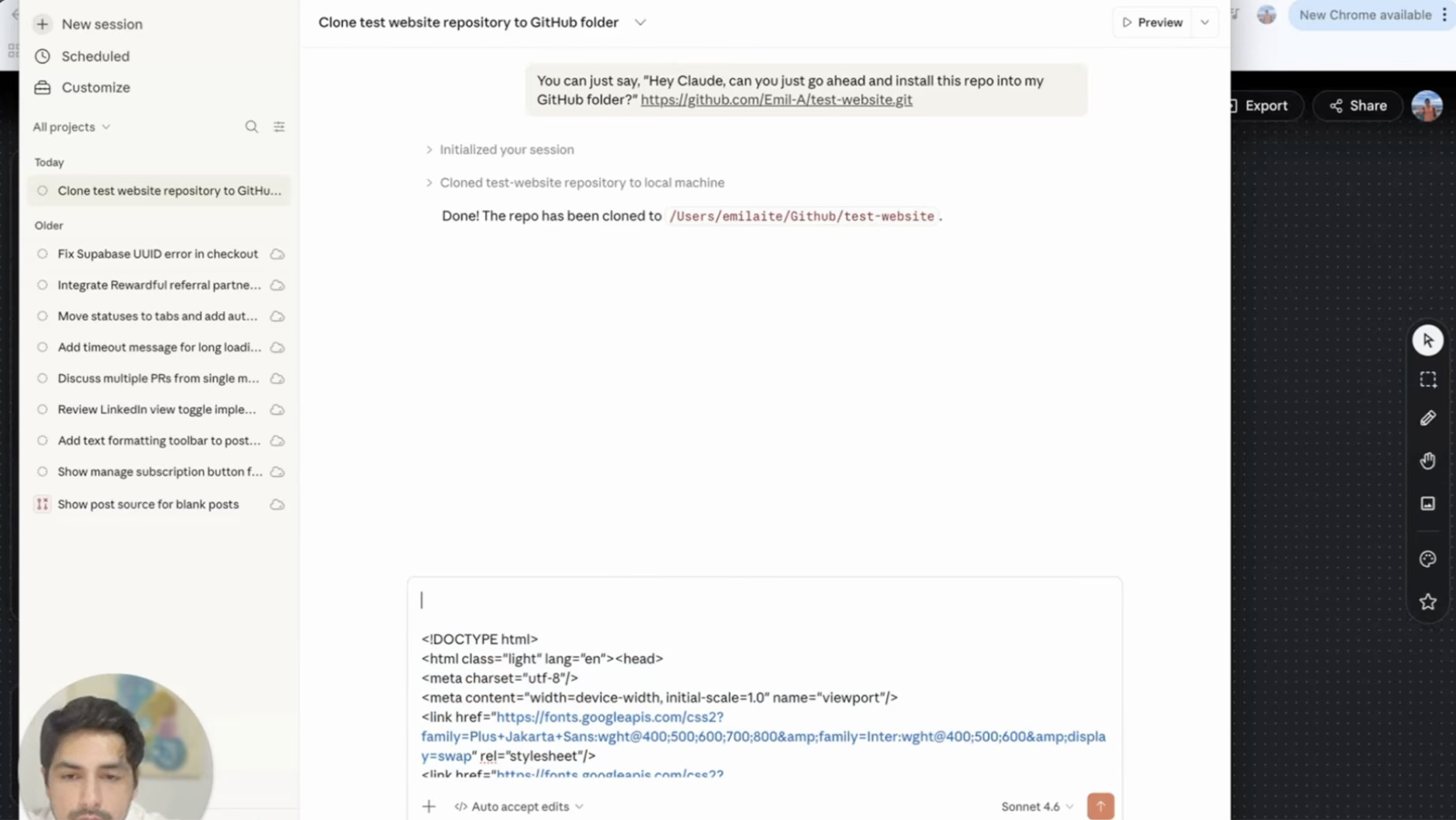
One habit worth copying: keep all of this in a dedicated folder (mine is just ~/Github) and run Claude Code from inside it, so the agent only operates on your website project - it's a capable tool, and you don't want it running everywhere.
Step 4: Clone your current design
You don't want a new website - you want your website, re-platformed. Three ways to capture the design, and honestly, by the time you read this there will be three newer ones (this space moves fast):
- Google Stitch (my current pick): ask it for the full style guide and page templates of your existing site, iterate on the designs - it even has a voice mode - then export the code to your clipboard.
- same.dev: paste your URL and it clones the site outright (paid plan required).
- Just ask Claude: "give me full markdown instructions to clone the styling of yoursite.com."
Expect small corrections - brand colors are the usual miss. The fix is easy: grab a screenshot of your real site, hand it over, and say "follow the coloring on this exact page." When the mockups look right (ours honestly came out better than the old Webflow blog), export the code.
Step 5: Build the new site with Claude Code in plan mode
Paste the exported design into Claude Code with instructions like: "I'm building this as a Next.js app - it's the new blog replacing postbeam.ai/blog. Copy over the pages and make a plan." The key phrase is plan mode: instead of charging ahead, Claude studies the project, asks clarifying questions, and shows you its full plan. You read it, say "looks good," and it takes the project over. Give it good instructions and it will one-shot a working first draft.
Two quality-of-life tips from doing this a lot: tell it to fetch the real images from your live site so nothing's missing, and dictate your instructions instead of typing - I use Wispr Flow with a little desk mic and it's far faster than writing prompts by hand.
Step 6: Deploy on Vercel
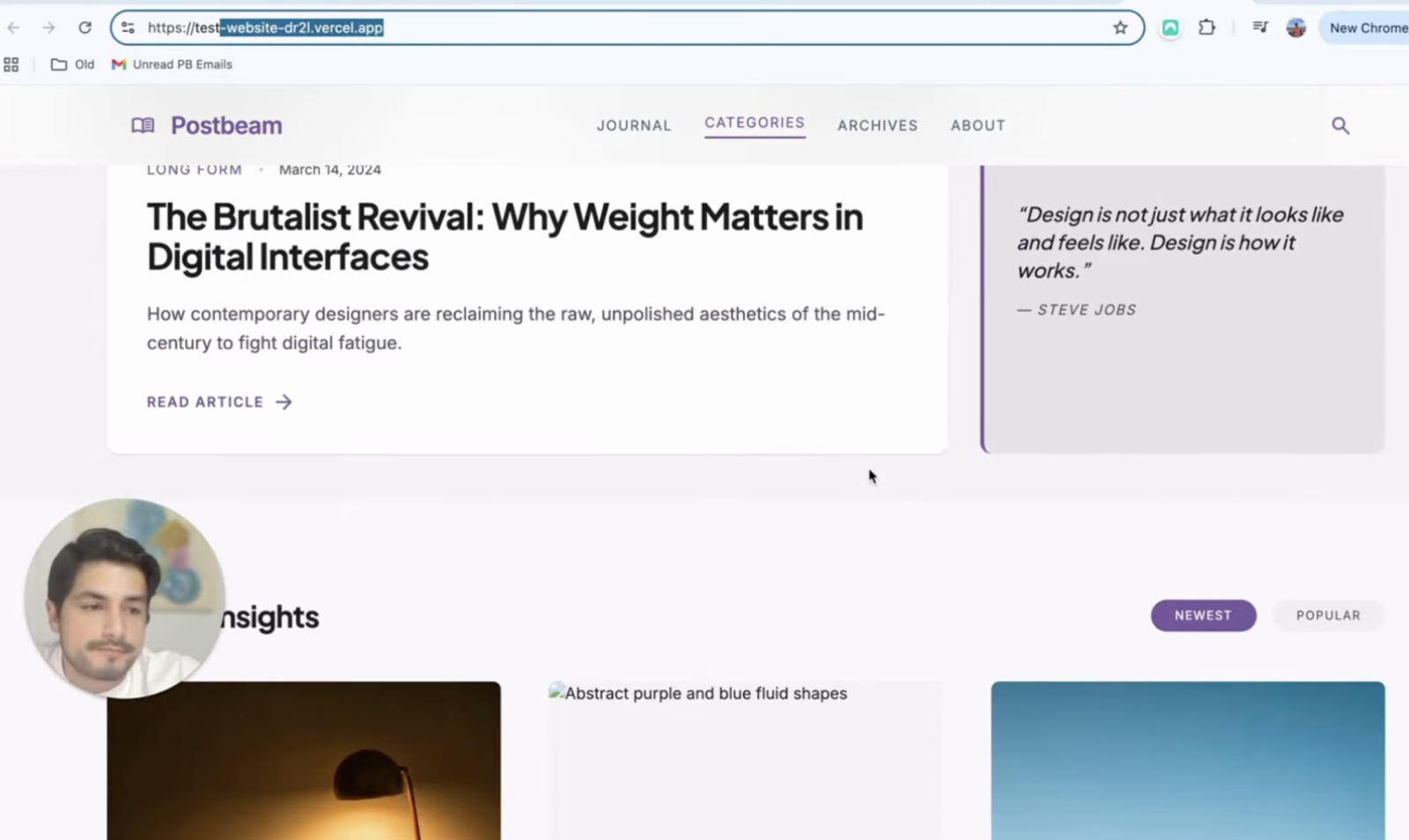
Create a free Vercel account, import the GitHub repo, confirm it's detected as Next.js, and deploy. That one connection is the whole publishing pipeline forever after: anything pushed to GitHub goes live automatically. (There's a smarter version of this with branch protections and limited access for your marketing team - that's a follow-up video.)
Step 7: Test, fix, and polish
Run the site locally and click everything. Build errors will happen - the workflow is to paste them straight into Claude: "can you check my build errors, make sure this builds, and run it locally?" Anything you'd do in a terminal, you can just ask for. It's worth learning the two or three basic commands anyway (npm run build, npm run dev) so you can see your own server logs and save your Claude tokens for real work.
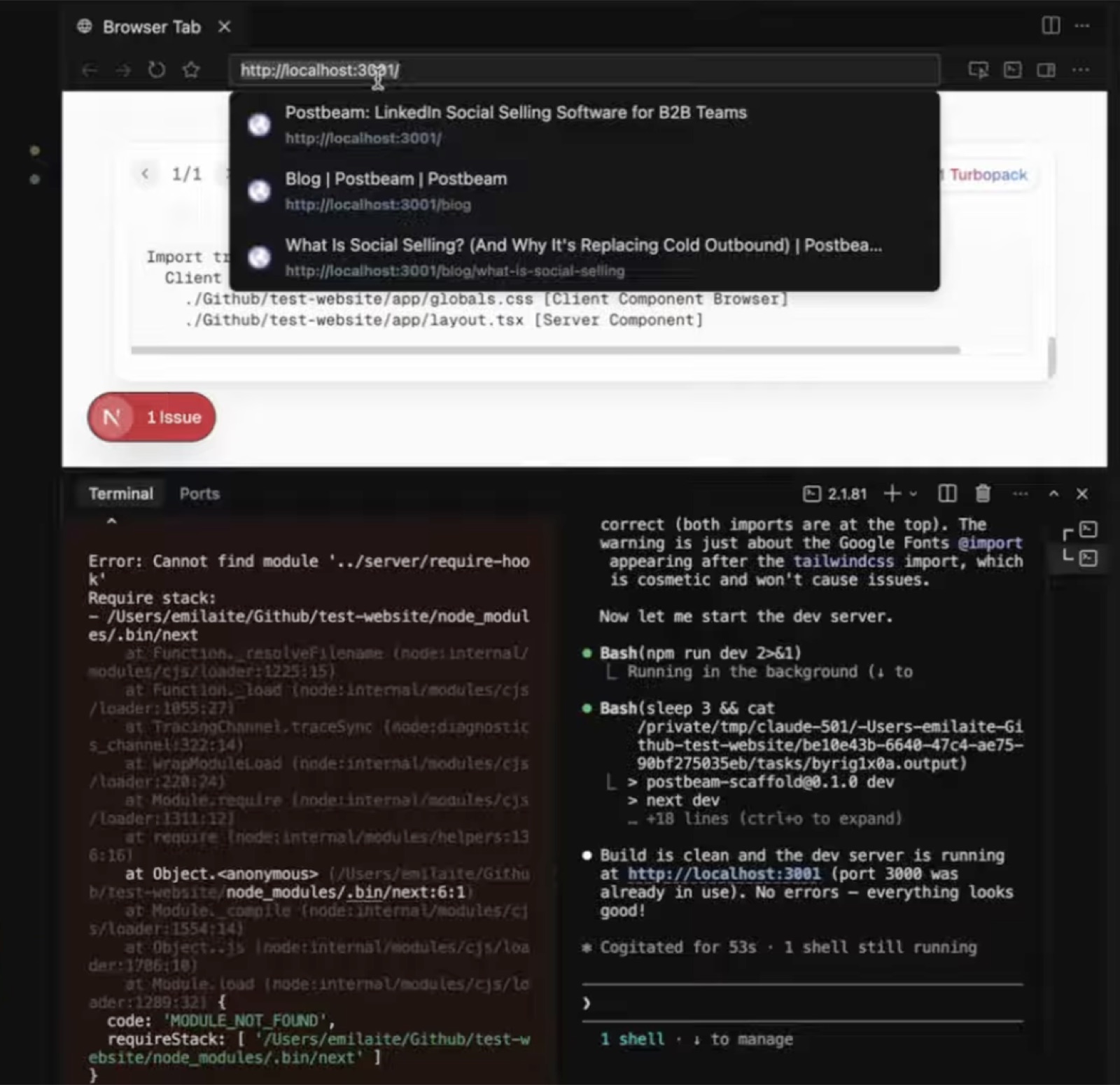
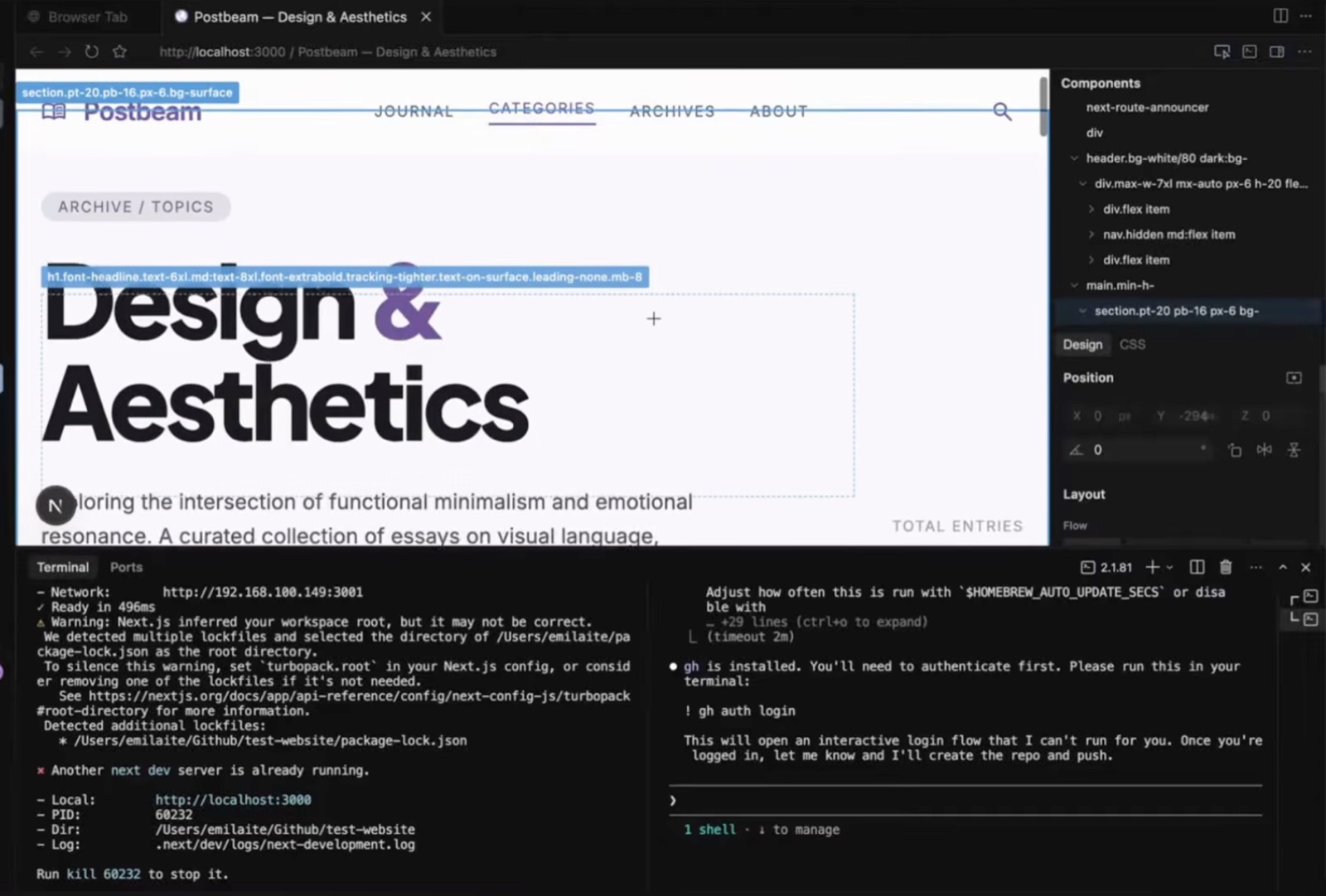
For fine-grained visual edits, open the project in Cursor (the free plan is enough): its browser view lets you click the exact element you want changed and say "change this" - and their new Composer model is extremely fast for small targeted edits. Different agents are good at different things; having two brains on the project is a feature, not a mess.
Wait - don't I need a CMS?
Probably not, and this is the part that breaks people's mental model. The argument for a CMS is fading because "publish this blog post and update the sitemap" is now a sentence you say to Claude, not a workflow you click through. Where a CMS still earns its keep: lots of non-technical people managing drafts and images daily, who you don't even want near GitHub. For a typical B2B marketing site moving a handful of pages or a modest blog - skip it, and revisit later if the team grows. (For what the blog itself should say once you can ship it this easily, that's our B2B SEO strategy playbook.)
The payoff: your marketers edit the website with AI
Here's why this beats every website builder for a B2B marketing site. The moment the migration is done, the entire site becomes promptable: "add a landing page for the webinar," "publish this post," "build a free ROI calculator," "update the pricing page." The person with the voice of the customer ships the change - no tickets, no plan upgrades, no per-seat CMS pricing. Our marketing site, blog, and free tools are all built and edited this way, and our whole content system runs on top of it.
And don't just take it from me - here's another CTO walking through the same shift:
Frequently asked questions
What is an SEO migration checklist?
It's the ordered list of steps that let you move a website (or part of one) to a new platform without losing your Google rankings: keep the same domain and URLs, proxy or redirect traffic correctly so Google's crawl budget isn't wasted, move the content and styling, verify everything resolves, and only then cut over. This guide is that checklist, with a modern twist - the destination is a custom-coded site you can edit with AI.
Can I migrate only part of my website?
Yes, and for big sites we recommend it. With a Cloudflare proxy rule you can send just /blog (or even a handful of blog URLs) to the new server while the rest of the site stays on Webflow or WordPress. That's exactly how we started with hoppier.com - new blog pages on the new stack, old pages untouched, all on the same domain. It's the lowest-risk way to test the waters.
Will I lose traffic when I migrate my website?
Not if you keep the same domain and paths. The big mistakes are moving to a subdomain (blog.yoursite.com instead of yoursite.com/blog) or changing URLs without redirects - Google treats those as new pages and you start over. The Cloudflare proxy approach in this guide keeps every URL identical, so Google barely notices the server behind it changed.
Do I need to be technical to do this?
You need what we'd call technical patience rather than engineering skill: you'll touch your DNS settings once, create a GitHub account, and paste commands into a terminal (or use the Claude Cowork desktop app and skip the terminal entirely). Claude does the actual coding. If a step breaks, you paste the error into Claude and it fixes it - that's genuinely the debugging workflow now.
Do I still need a CMS after migrating?
Probably not, and that surprises people. A CMS earns its keep when many non-technical people manage drafts and images daily. With Claude Code, 'update the pricing on the homepage' or 'publish this post' is a sentence, so the CMS argument is fading. The main case left for one is image management and draft workflows across a large marketing team - otherwise skip it.
Why migrate to custom code instead of staying on Webflow or WordPress?
Because of what you can do afterward: anyone on your team - marketing, sales, whoever has the voice of the customer - can change the website by describing the change to AI. New landing page, new blog post, new free tool, pricing update: minutes instead of tickets. Our whole site including this blog runs this way, and it's also dramatically cheaper (Cloudflare, GitHub, and Vercel free tiers cover a typical marketing site).
Stuck on a step? Or want the whole engine run for you?
If any step here isn't clear, genuinely - reach out and I'll help. And if you'd rather someone run the whole content machine on this stack (the migration, the blog, the LinkedIn), that's Postbeam's Content Engine - we accept three new done-for-you clients a month.